Initial Setup
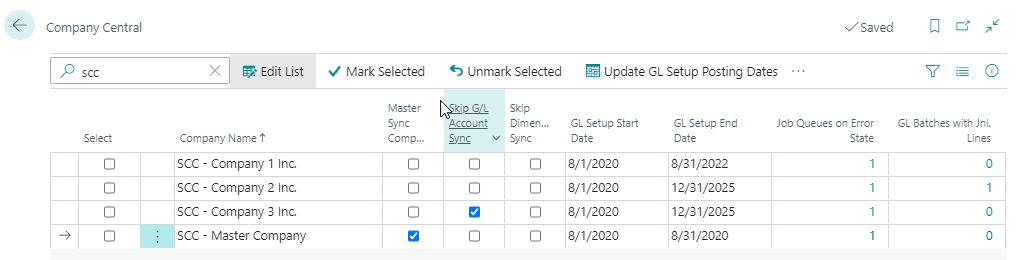
The setup in Company Central is simple. To get started, the user simply needs to choose a Master Sync Company and mark any companies that will be exceptions for companies for which G/L Accounts and/or Dimensions will not be synced to the Master Sync Company.
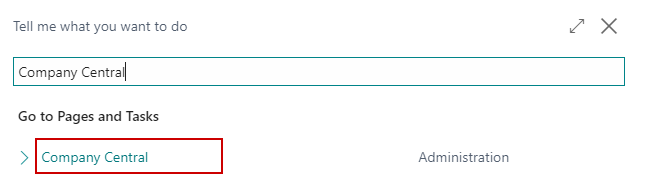
To access the Company Central dashboard, click the search bar and search for Company Central. You can access this page from within any company. The information is the same across all companies.
Company Central
| FIELD NAME | FUNCTION |
|---|---|
| Specifies this company as the Master Sync Company for synchronizing the Chart of Accounts and Dimensions/ | |
| Specifies to skip this company when syncing the Chart of Accounts. | |
| Specifics to skip this company when syncing Dimensions. | |
| The current Allow Posting From date in General Ledger Setup for each company. | |
| The current Allow Posting To date in General Ledger Setup for each company. | |
| The number of Job Queues that have errors for each company. | |
| The number of General Journal Batches with unposted lines for each company. |
Sync Field Exceptions
Company Central has the flexibility to allow users to exclude specific fields from syncing so they can be managed in individual companies. For example, users may want to block specific G/L Accounts in companies that will not leverage those accounts so the Blocked field could be added as an exception.
The Sync Field Exceptions page can be accessed from the Company Central Dashboard:
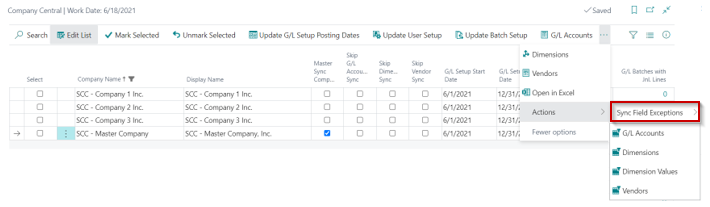
Users can select the master records for which they would like to add field exceptions and the Sync Field Exceptions page will open.
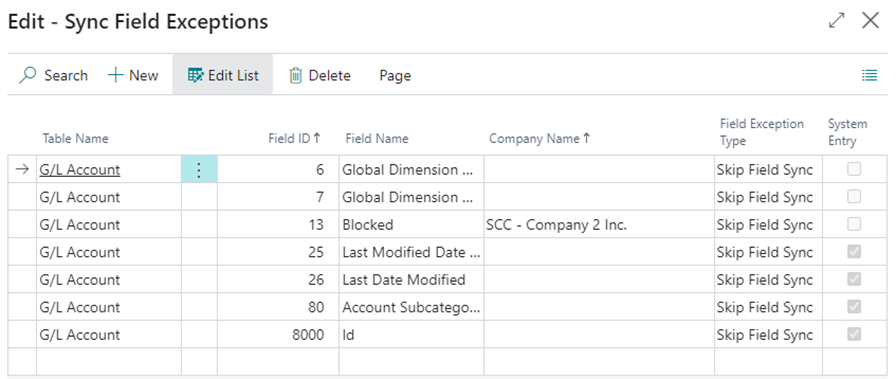
| FIELD NAME | FUNCTION |
|---|---|
| Specifies the master record type for the exception. | |
| Used to select which field needs to be an exception. | |
| Displays the name of the field selected in the Field ID field. | |
| If a company is selected, then the exception will only occur in this company. If the company is left blank, then the exception will occur in all companies. | |
| Specifies the type of exception: | |
| • Skip Field Sync – the most common option, it is used to stop the syncing of this field so it can be managed in the Sync Companies. | |
| • Skip Field Validation – this option does not prevent syncing. Instead, it bypasses validation to keep records in sync. This should only be used if it is the default set up or at the recommendation of a Partner. Instances where this may be used are when you have two fields that validate each other that is causing errors when syncing normally, like the Blocked and Privacy Blocked fields on the Vendor. | |
| System Entry | Specifies if this field is set by the system. |